Shift checklists
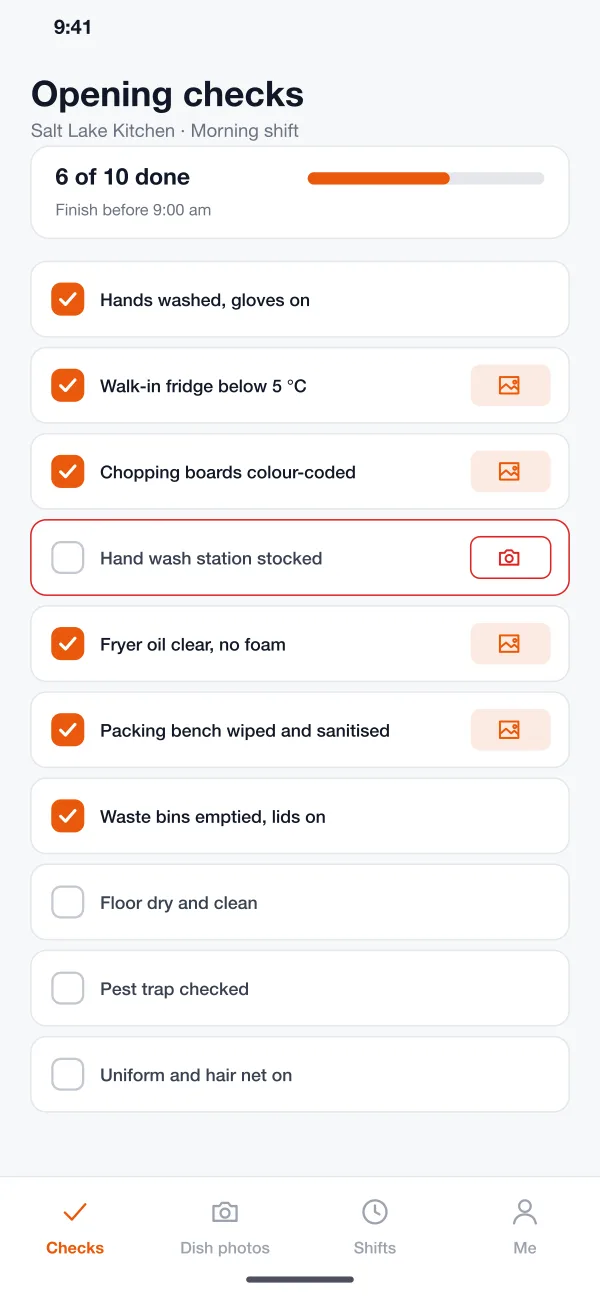
Each shift starts with a list, such as opening, mid-shift and closing checks. Staff tick the items, and the app shows how much is left and by what time it must be done.
Staff tick shift checklists, add the photos head office asks for and score dishes against a reference. Head office sees a score for every kitchen.
See a shiftFridge looked ok I think. Will send photo laterKitchen group chat
The same four needs every multi-kitchen brand has, done the old way and done in the app.
Each kitchen keeps its own paper list, and the lists drift apart over time.
Head office sets the opening, mid-shift and closing lists once. Every kitchen runs the same items.
A tick on paper, and a photo that may or may not arrive in a chat group.
Checks marked for a photo cannot be ticked without one. Each photo shows when and by whom.
A warm fridge is noticed next week, or when a customer complains.
A failed item alerts the outlet manager and stays open until someone fixes it and adds a note.
The owner guesses which kitchen is slipping from calls and visits.
A scorecard ranks every outlet, split into hygiene and dishes, with the photos behind each score.
Every check, photo and score in the kitchen app lands on the same record the head office reads.
Each shift starts with a list, such as opening, mid-shift and closing checks. Staff tick the items, and the app shows how much is left and by what time it must be done.
The head office marks which checks need a photo, for example the fridge, the hand wash station or the packing bench. The photo is stamped with the time and the name of the person who took it.
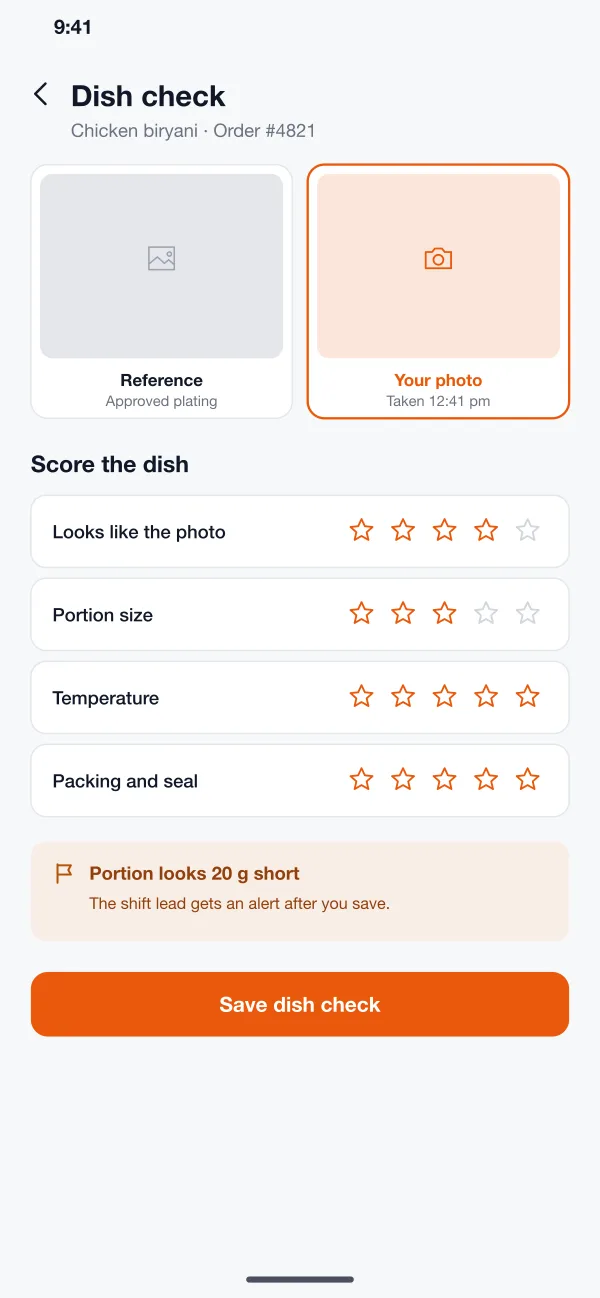
For a sample of orders, staff compare the plated dish with the reference photo and score the look, portion, temperature and packing. A gap is flagged to the shift lead straight away.
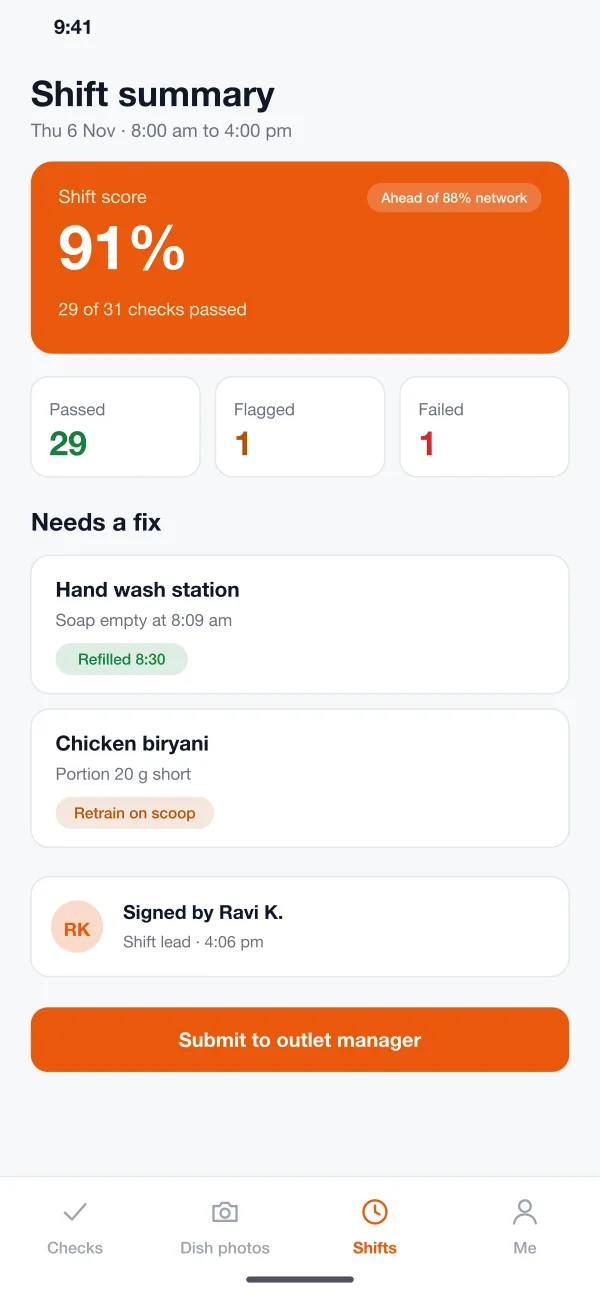
A failed item, such as an empty soap dispenser, sends an alert to the outlet manager. The item stays open until someone fixes it and adds a note or a photo.
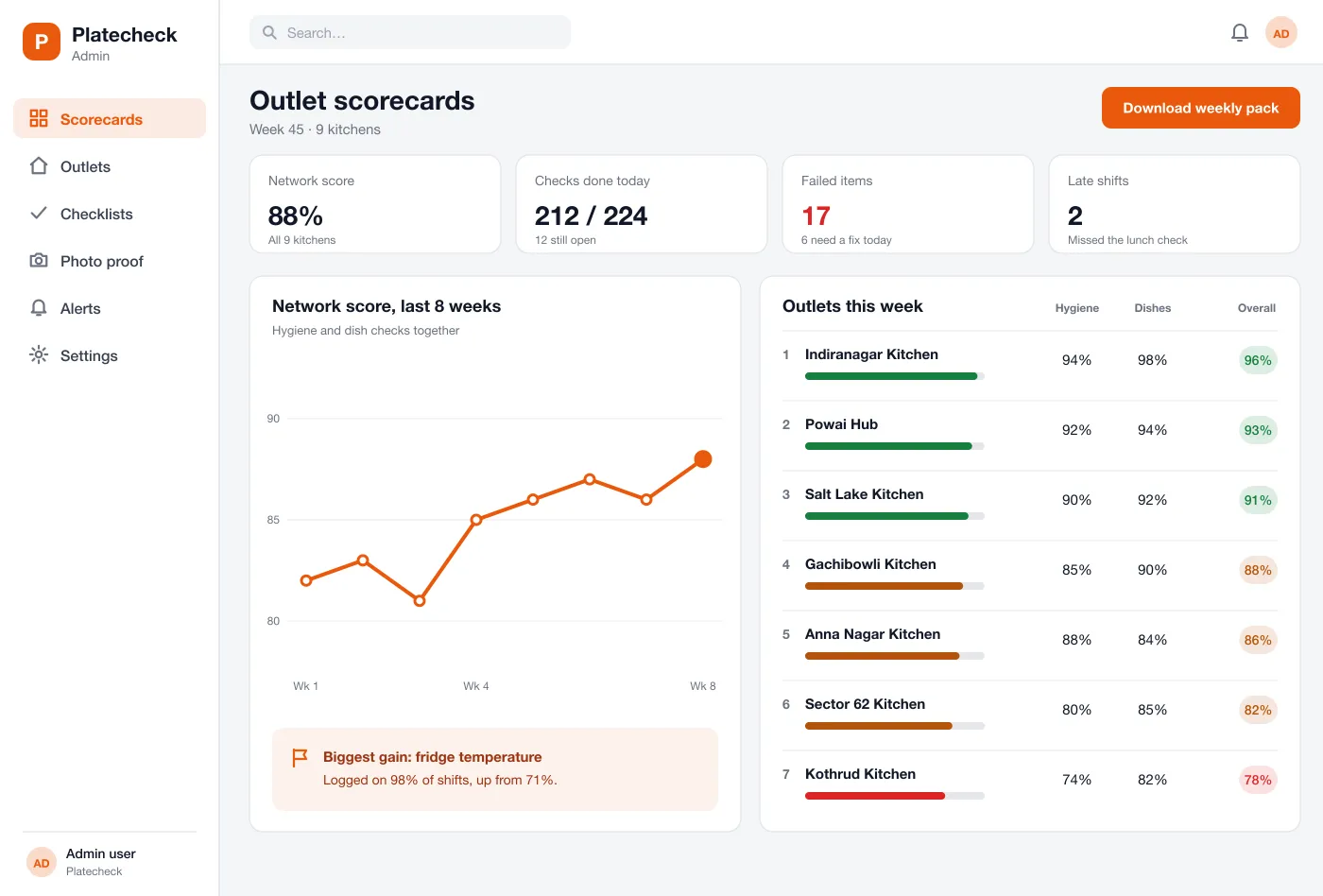
The dashboard ranks every kitchen by its score and splits it into hygiene and dishes. A weekly line shows whether the network is getting better or worse.
The reviewer sees the photos from a shift in one grid. Each can be passed, flagged or sent back, and the weekly pack can be downloaded for audits.
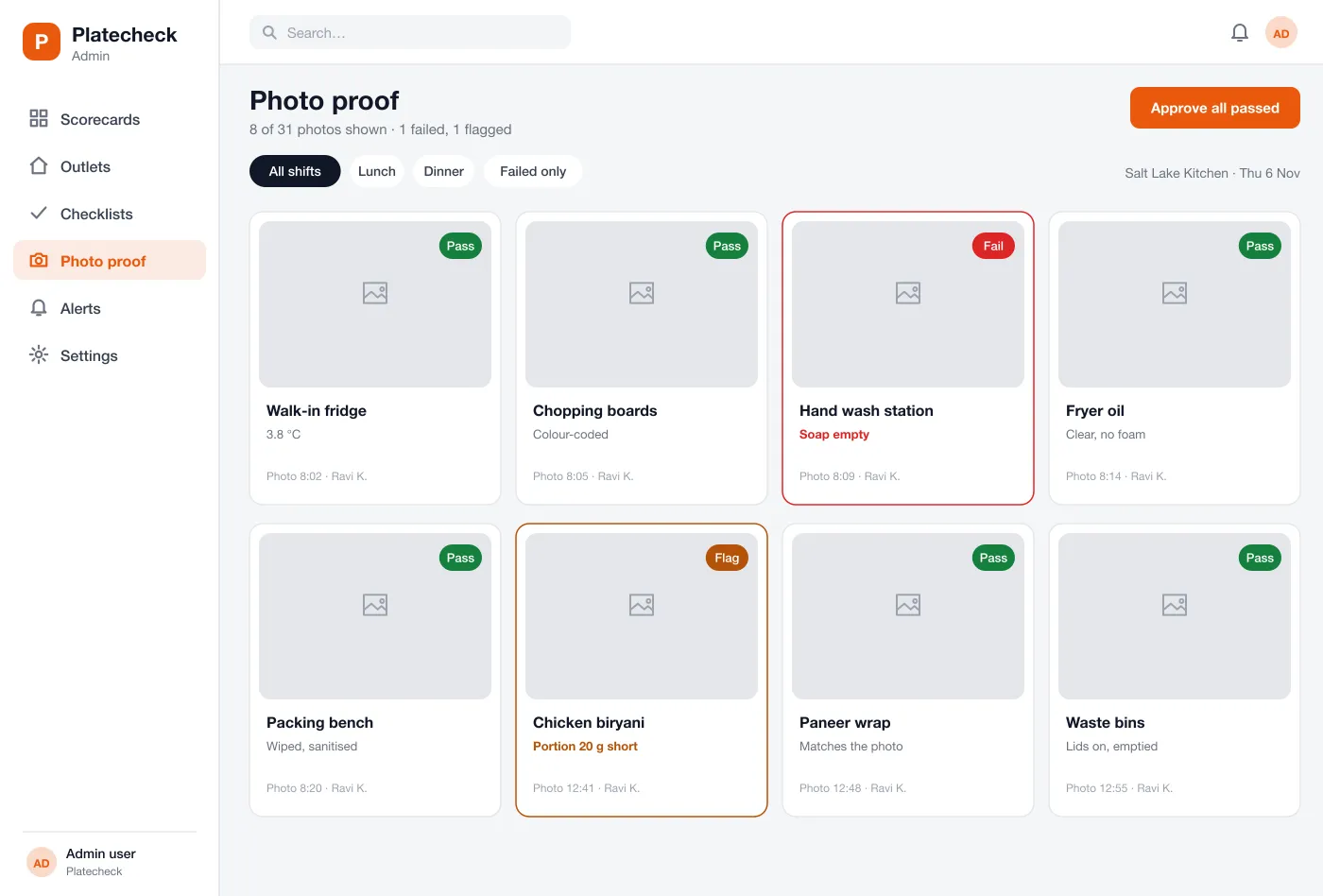
Follow a shift lead through the checks, the photos and the sign-off.
The shift lead runs the opening checklist, takes the required photos and sees the one item that still needs a fix.
A cook compares a plated dish with the reference photo, scores it and saves. A short portion is flagged to the lead.
The lead reviews the shift summary, signs it and sends it to the outlet manager.
The head office reads the scorecards, opens the photos behind a low score and sends an item back for a fix.
Run the opening, mid-shift and closing checks, then sign the shift summary.
Tick items, score dishes and see what still needs doing and by what time.
Compare outlet scores, open the photos behind a low score and send items back.
It is software that helps a food brand run the same checks in every kitchen. Staff tick a checklist each shift and photograph dishes. The head office sees scores and photos for all outlets in one place.
Yes. Staff can sign in with a short PIN on one shared tablet or phone per kitchen, so each check still shows who did it. Photos and ticks are saved on the device if the internet drops and sent when it comes back.
Yes. We can build the web dashboard and a staff app for Android and iOS, with your own checklists, dish standards and scoring rules.
Each dish has a reference photo and a short list of things to score, such as portion, look and temperature. The staff member takes a photo, scores the dish and any gap is flagged to the shift lead.
No. Every checklist has a time window. If it is not finished in time, the shift shows as late on the dashboard and the outlet manager gets an alert.
Open the kitchen app, tick the opening list and see how a low score traces back to a photo.